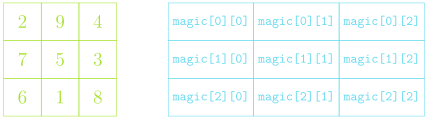
Image data is commonly stored in two-dimensional arrays
Each element stores information about the pixel that exists at
that location
The GImage class lets you convert
between the image itself and the array representing the image contents
by using the get_pixel_array method, which
returns a two-dimensional array of integers.
We could get the pixels from our example image using:
The first index of the pixel array gets you the row, the second
index gets you the column
Pixel Contents
Each element in a pixel array is an integer in which the 32 bits are
interpreted as:
The first byte (8 bits) is the transparency or alpha
The next three bytes indicate the amount of red, green, and blue in
the pixel, where each value varies from 0 to 255
Form the RGB of a color, generally expressed in hexadecimal form
10010101 →
0x95
00111001 →
0x39
01100011 →
0x63
Overall color: #953963 or
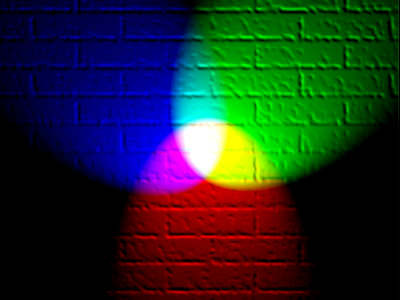
Combining Light Colors
Additive Colors
Transparency
The first byte (8 bits) of the pixel value gives the transparency,
which indicates how much of the background is allowed to show
through
Often denoted with the Greek letter alpha: \(\alpha\)
Varies from 0 to 255 like the other 8 bit values:
0 is entirely transparent
255 is entirely opaque
Breaking out the Colors
You do not need to convert the pixel values yourself! PGL has
built-in ways to extract the various colors
Function
Description
GImage.get_red(pixel)
Returns the integer (0-255) corresponding to the red portion of the
pixel
GImage.get_green(pixel)
Returns the integer (0-255) corresponding to the green portion of
the pixel
GImage.get_blue(pixel)
Returns the integer (0-255) corresponding to the blue portion of the
pixel
GImage.get_alpha(pixel)
Returns the integer (0-255) corresponding to the alpha portion of
the pixel
GImage.create_rgb_pixel(r,g,b)
Returns a 32-bit integer corresponding to the desired color
Image Thresholding
As an example of reading and manipulating pixel values, lets look at
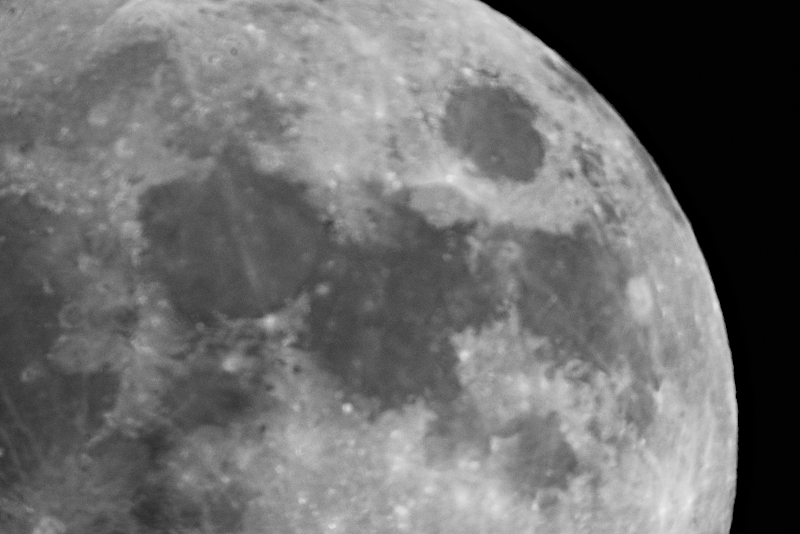
how we could threshold the image to the right
Thresholding is when you take a grayscale image and convert it to a
black and white image, where a pixel is set to be white if it is above a
certain threshold in brightness
Grayscale, so each RGB component is the same Let’s threshold at a
value of 30
Blurry Moon by Jed
Group Problems Daily LO’s
Recall of List comprehension
Selecting from multidimensional arrays
Creating pixel arrays from images
Modifying pixel arrays
Problem 1a:
Comprehension!
What is the third element (index 2) in the below list?
[i * 4 for i in "Oct 21, 2026" if not i.isalpha() and not i.isspace()]
21
",,,,"
"tttt"
"2222"
Problem 1b: Comprehension
Suppose I construct the below 2D array using list comprehension:
A = [[i+j for i in range(3)] for j in range(4)]
What would be the output of:
print([A[i][2] for i in range(len(A))])
[0,1,2]
[2,3,4]
[2,3,4,5]
[2,2,2,2]
Problem 2a: That’s No Moon
Head into Discord and grab the starter codes from
there!
This is a coding problem. Work in pairs on a single computer
Discuss your algorithm BEFORE YOU WRITE ANY CODE.
Make sure everyone understands.
You are working in Prob2.py
Initial tasks:
Add a dark blue background rectangle to the window
Add a GImage of the
moon.png image centered in the window
Problem 2b: Odd Pixels
Swap who is typing!
Extract the pixel array from the moon image
This moon image is a grayscale image, so the Red, Green, and Blue
components are always equal
Looping over all the pixels, how many pixels are darker than a value
of 30?
Problem 2c: Thresholding
Swap who is typing!
Modify your last code to actually update the pixels in the array
If they are darker than 30, set them to a perfectly black pixel
Otherwise, set them to a perfectly white pixel
Pass the updated pixel array into
GImage(pix_array) and add the result to the
window
Play around with the thresholds to see different effects
Since you are adding it on top of the original, you can also play
around with giving the pixels some transparency (or making them
different colors!)